Skip to content
The new ClearPool platform

ClearPool innovative AI-powered trading

Try the free demo and discover the Operational Pool system with live signals every morning. Or try the free live signals from our Telegram channel.

01

Try the Demo

Register for free with nickname and email, confirm your email, and access the demo platform. The form is already ready: enter and start seeing how ClearPool works.

Open the Demo
02

Live Telegram Signals

Every morning we publish free live signals, operational updates, and market guidance together with the ClearPool community.

Join the Telegram Channel
Screenshot della piattaforma ClearPool Trading

Choose what you want to know

1

Operational Pool Guide

Read the quick guide to understand how the Operational Pool works.

2

Technical Platform Guide

Explore all platform features step by step.
Complete ClearPool platform overview
Pool Guide

Understand the Operational Pool

This section explains the operating model directly. Screenshots keep their natural proportions and the highlighted note is placed below each image without covering it.

Back to selection
01

Demo start and Real mode

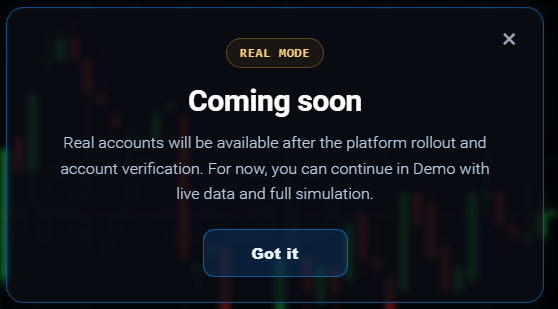
When you open the platform, Demo mode starts by default in USD. The demo balance starts at 50 and the Pool starts at 1,000. If you click Real, you see a coming soon message.

Demo mode, balance, and Deposit button in the topbar.
Look here: Demo mode opens by default in USD and the Deposit button is always visible in the topbar.
Real mode is marked as coming soon.
Notice this point: for now Real is not active yet, so clicking it shows a coming soon message.
02

Operational Pool, Mine / Pool and rules

Look at the Pool panel to see the current Pool value, the pool percentage compared with the selected stake, the Mine / Pool switch, and the latest operational notes.
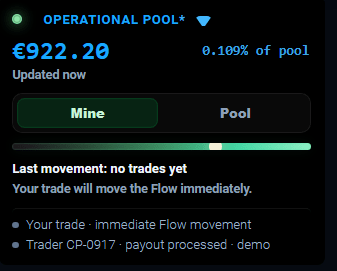
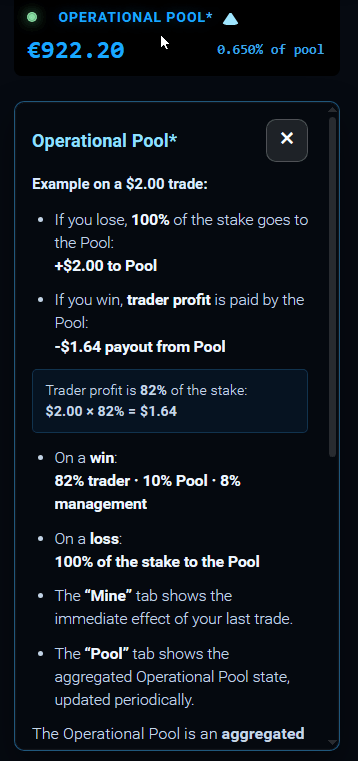
Operational Pool panel.
Focus here: this panel shows the Pool value, the selected amount as a percentage of the pool, and the Mine / Pool switch.
Detailed example of the Pool rules.
Read this example: it explains how wins and losses affect the Pool and how the 82 / 10 / 8 logic is applied.
03

Distribution, payout, and trade progress

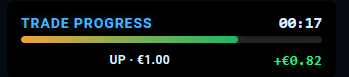
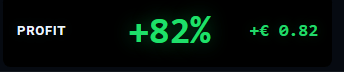
You can immediately see how profit is displayed, how the 82 / 10 / 8 split is presented, and how the progress bar follows an active trade until expiry.
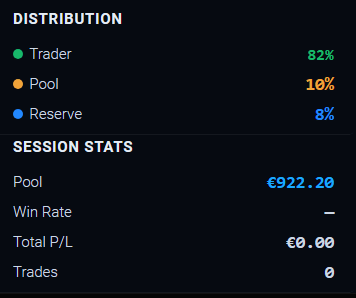
Distribution and session statistics.
Trader, Pool, and Reserve are shown together with the live session statistics.
Profit and payout panel.
The platform shows the payout percentage and the expected value for the current amount.
Trade progress during an active trade.
Direction, stake, and remaining time are updated while the trade is active.
04

Top-up logic and trade action

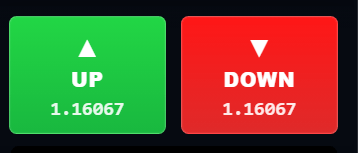
Deposit stays locked until the demo balance drops below 10. When it unlocks, the top-up restores the demo balance to 50. Use UP or DOWN to choose the trade direction.
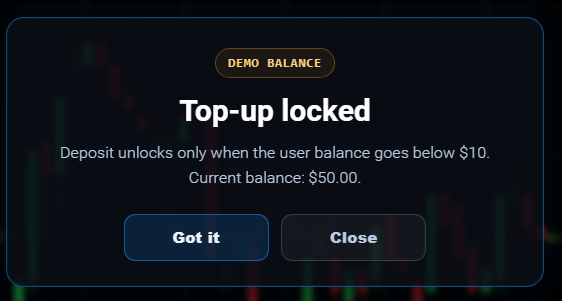
Top-up locked while the balance is above the threshold.
Important: this message explains that the top-up becomes available only when the demo balance drops below 10.
UP and DOWN trade buttons.
Choose UP if you expect a rise, DOWN if you expect a drop.
Technical Platform Guide

Platform features step by step

This section focuses on the platform itself. The most important screenshots, such as favorites, are given more space when needed so they look closer to what you really see inside the platform.

Back to selection
01

Login and registration

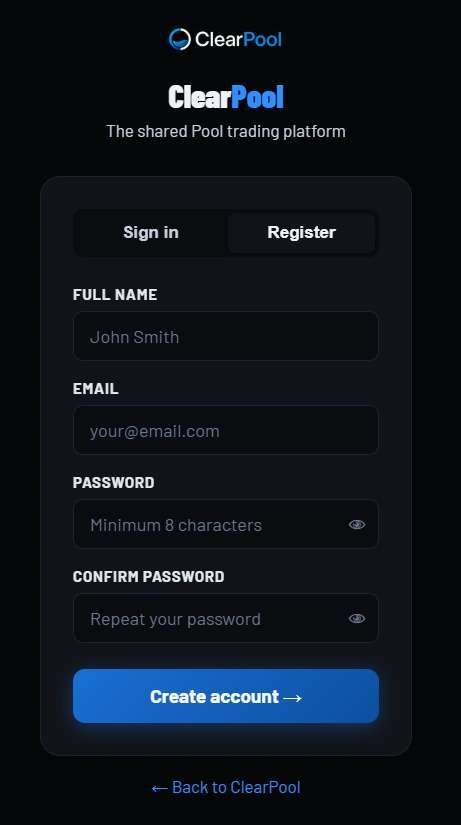
You can log in with email and password, or create a new account with name, email, password, and password confirmation.
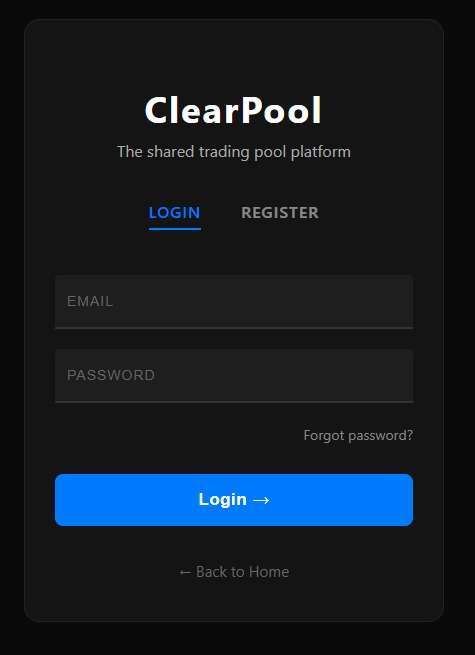
Login screen.
Login screen.
This is the login page.
Registration form.
Registration form.
This is the registration page for new accounts.
02

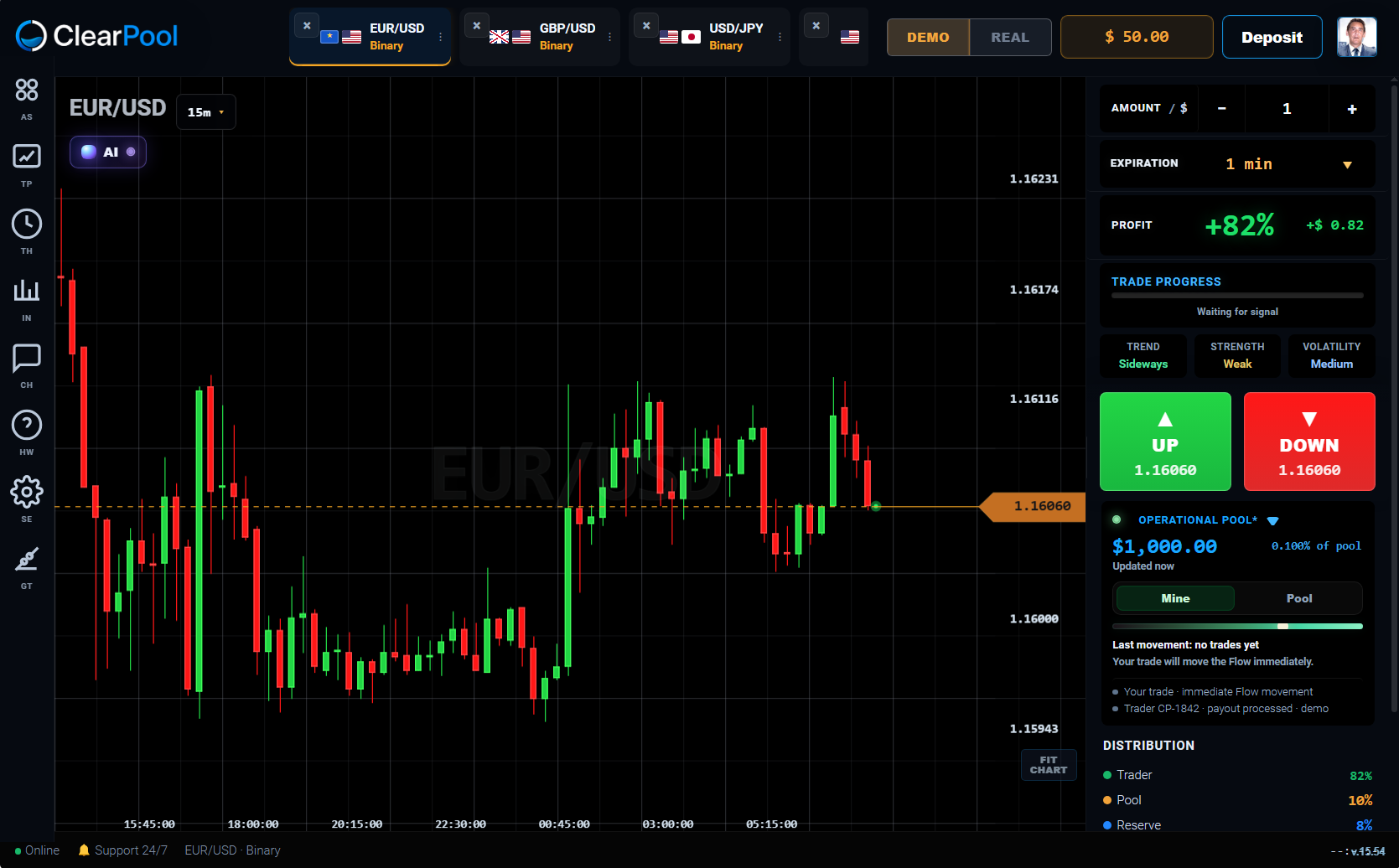
Main platform overview

This is the main operating screen. The chart is in the center, navigation is on the left, the trading panel is on the right, and favorite assets remain in the topbar.

Main platform overview.
This complete screenshot shows the full structure of the platform.
03

Sidebar navigation

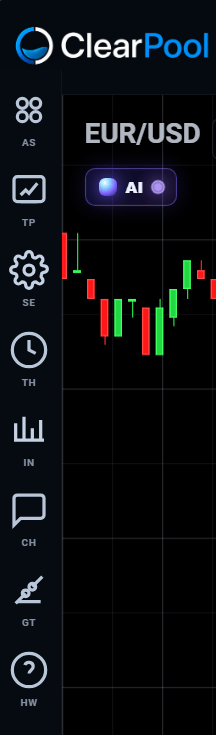
Use the left sidebar to open platform areas such as assets, portfolio, history, indicators, support, settings, graphic tools, and How It Works.
Sidebar navigation.
Sidebar navigation.
Each icon opens a specific section of the platform.
04

Favorite assets topbar

Add assets to favorites with the star, close them with the X, and reorder them by dragging.

Favorite assets topbar.
Favorite assets stay at the top so you can quickly switch from one instrument to another.
05

Asset selection panel

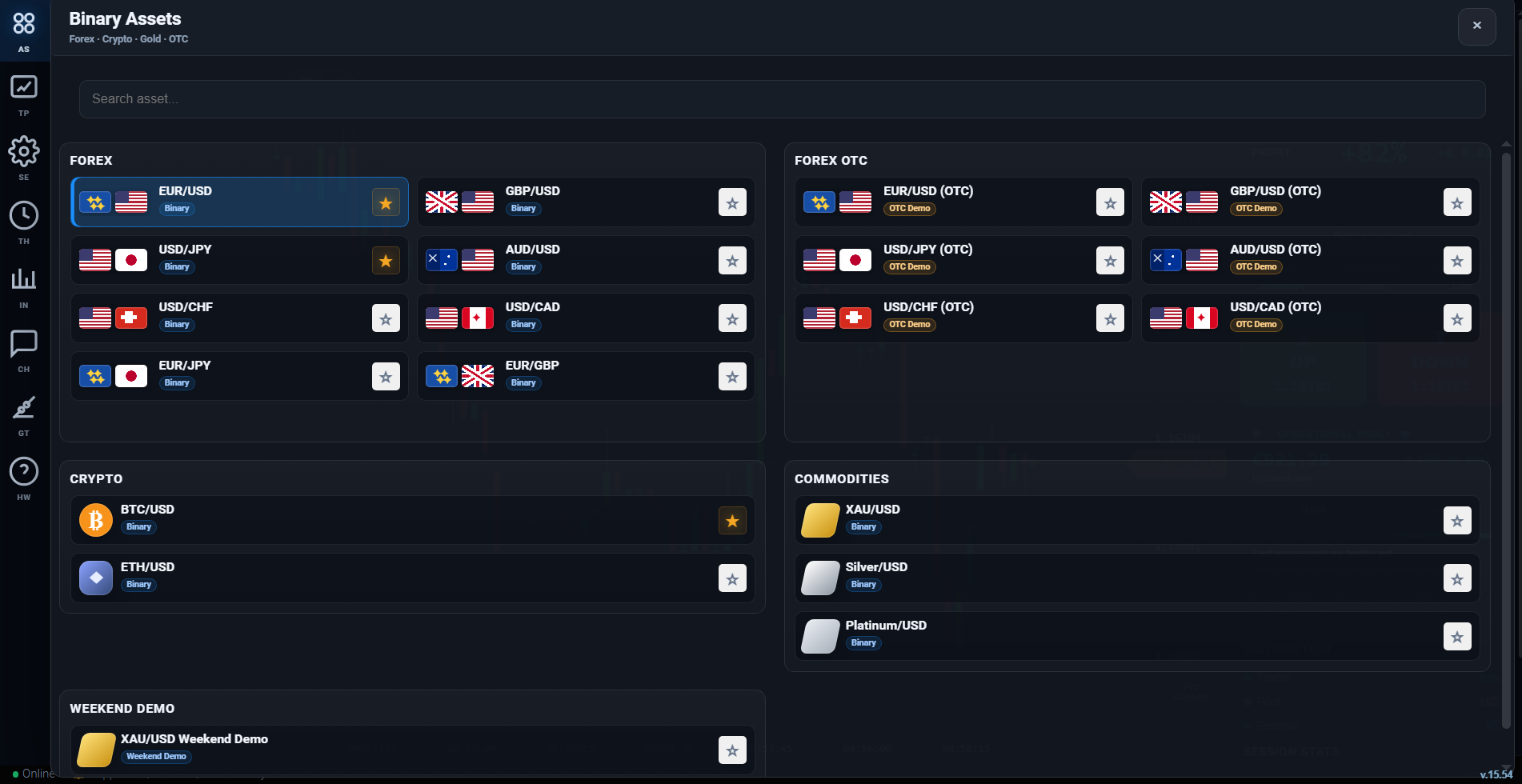
Choose an asset from Forex, Forex OTC, Crypto, Commodities, or Weekend Demo.
Asset selection panel.
Use search and categories to choose the instrument you want to trade.
06

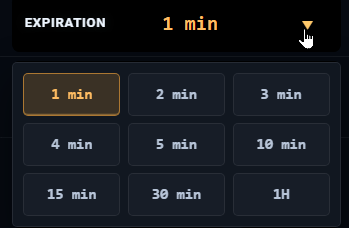
Timeframe, expiry, and amount

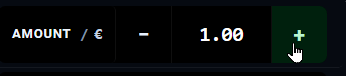
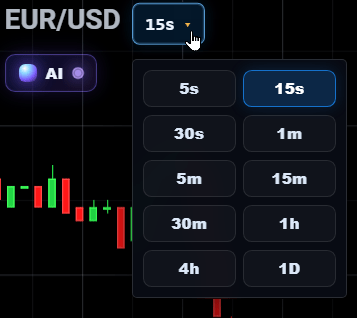
Open the timeframe menu, choose the trade duration from Expiration, and adjust the amount with the plus and minus controls.
Timeframe selector.
Timeframe selector.
Choose the chart timeframe from 5 seconds up to 1 day.
Expiration dropdown menu.
Set the trade duration here.
Trade amount control.
Use plus and minus to change the stake amount.
07

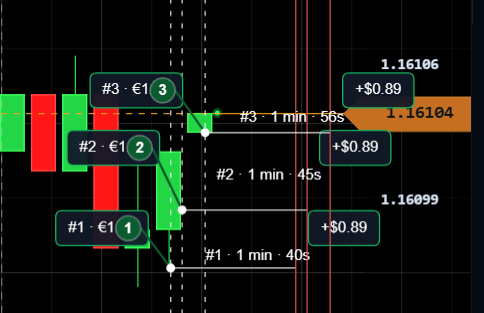
Market conditions and chart entries

Check Trend, Strength, and Volatility, then monitor entry markers directly on the chart when trades are opened.

Trend, Strength, and Volatility.
These values help you read the current market context.
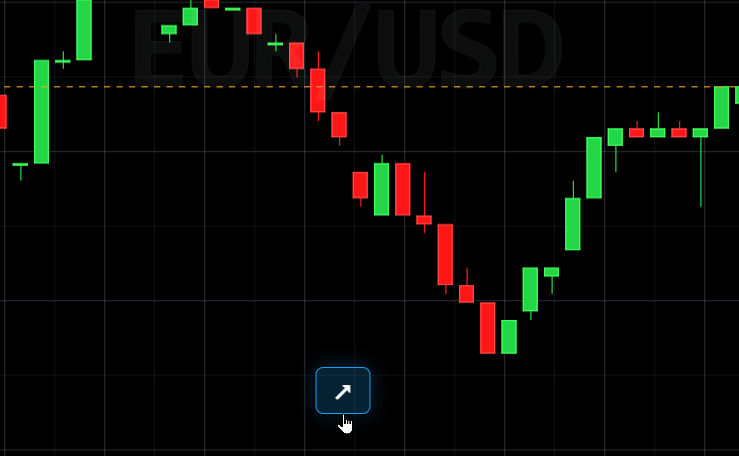
Trade entry markers on the chart.
Each trade appears on the chart with numbered markers and reference lines.
08

Trade result, portfolio, and history

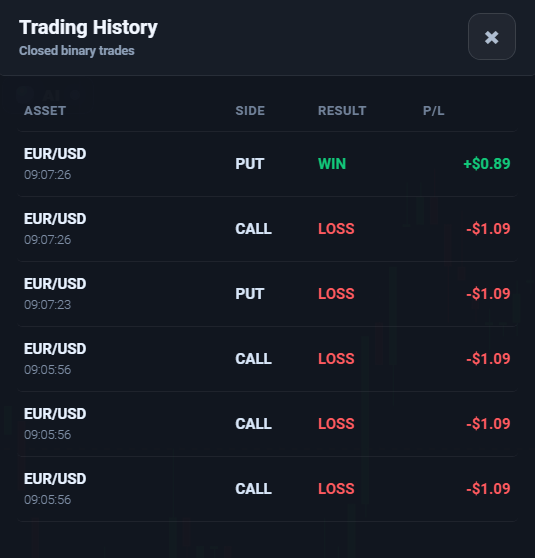
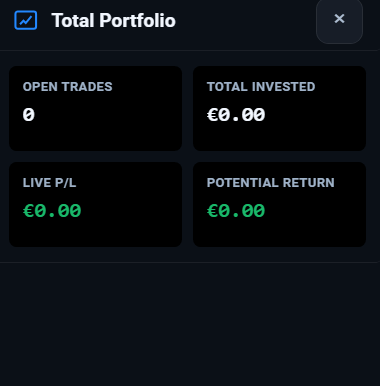
After expiry, the result appears on the chart. You can check open trades in Total Portfolio and closed trades in Trading History.
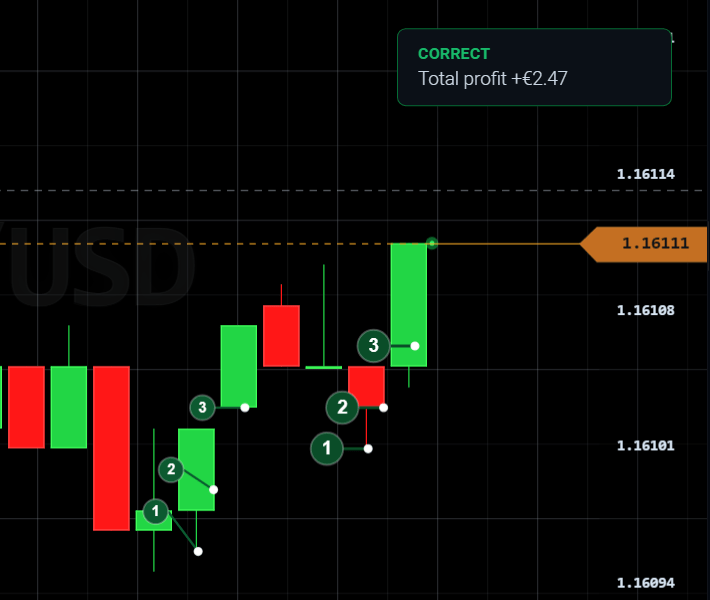
Trade result shown on the chart.
When a trade closes, the result is shown directly on the chart.
Total Portfolio panel.
Here you find open trades, total invested, live P/L, and potential return.
Trading History panel.
Here you can review closed trades and their results.
09

User profile and AI Assistant

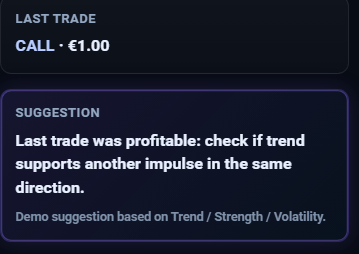
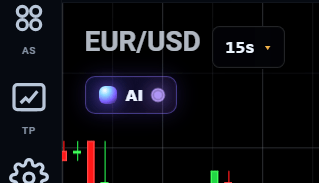
Open the profile to check verification status and balances. Use the AI button and AI panel to see contextual assistance related to the current asset and latest trade.
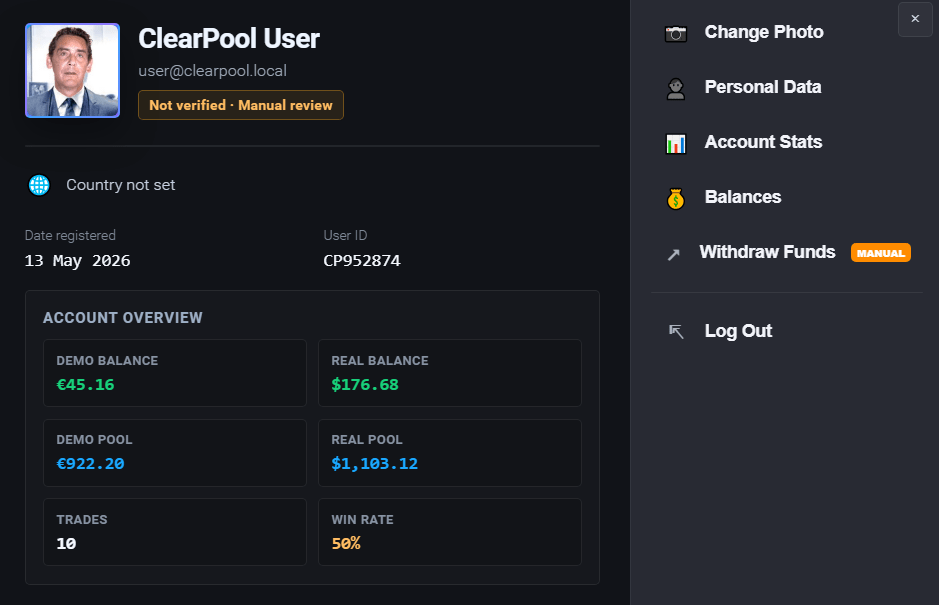
User profile overview.
The profile panel shows status, balances, Pool values, trades, and win rate.
AI Assistant toggle near the chart.
Click this small button near the chart to open the AI Assistant.
AI Assistant analysis panel.
The AI panel shows asset, timeframe, trend, strength, volatility, and a contextual suggestion.
10

Chart reading tools

Read OHLC values by hovering over a candle, use Focus to return to the active zone, and use Fit Chart to restore the chart framing.
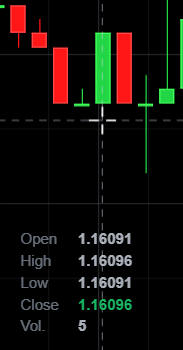
Candle OHLC data on hover.
Hover over a candle to see Open, High, Low, Close, and Volume.
Focus button.
Focus button.
Focus brings the chart back to the active operating area.
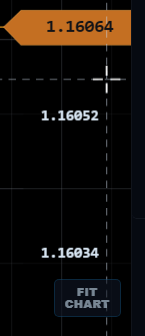
Fit Chart button.
Fit Chart button.
Fit Chart restores the chart scale and framing.
11

Graphic tools, indicators, settings, and support

These sections give you drawing tools, technical indicators, platform preferences, and direct support contacts.
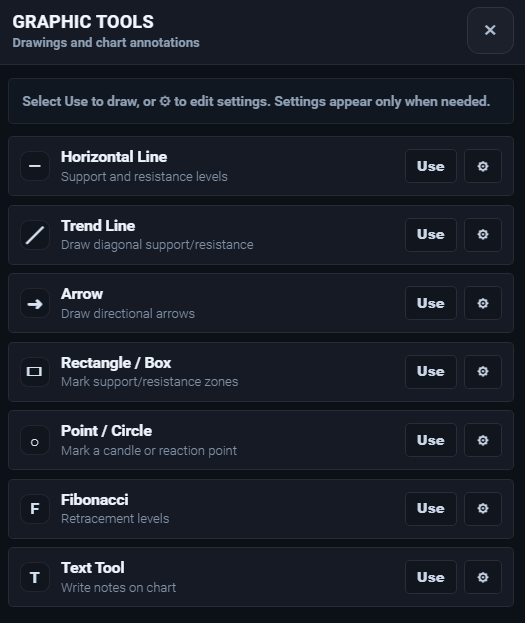
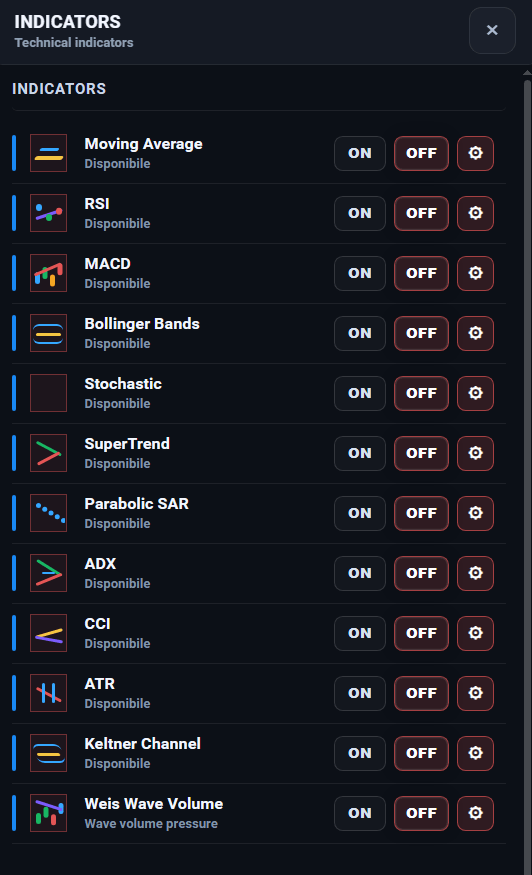
Graphic tools panel.
Draw lines, arrows, boxes, Fibonacci, and text notes directly on the chart.
Technical indicators panel.
Enable or disable indicators and open their settings.
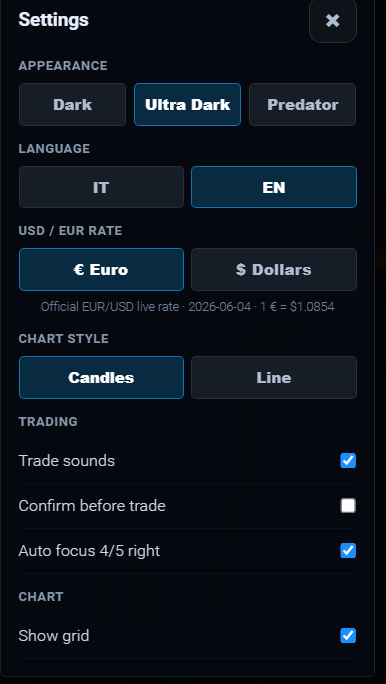
Settings panel.
Settings panel.
Theme, language, currency, sounds, and chart options are managed here.
Support panel.
Support panel.
Here you find direct support contacts and the Telegram channel.